With an increasing number of Windows users upgrading their OS to Windows 10, it is crucial for them to know how to optimize their operating systems. Many users installed or upgraded Windows 10 on their current aged laptops or desktops, which is likely to affect the performance of running Windows 10. Old computers which come with old drive are able to perform Windows 10, yet you may encounter slow running speed especially when you launch some certain programs which with big cache files.
Purchase new PC would be an acceptable solution, but it isn’t suitable for every Windows user. More attention should be paid to optimizing existing PC. Follow these five tips below to speed up your Windows 10 now.
Press Windows key + R at the same time to open Run box. Type netplwiz and hit Enter. Uncheck Users must enter a user name and password to use this computer box, and click Apply. It will ask you to type password in the pop-up window to confirm this operation.

Go Start -> Control Panel -> Network and Internet -> Network Connections. Double click Ethernet0, click Properties, and then uncheck Internet Protocol Version 6 (TCP/IPv6) box.


Double click This PC on the desktop, and click System properties -> Advanced system settings -> Settings. Uncheck Fade out menu items after clicking box.


Follow the steps in Tip #4 to Settings. Click Advanced next to Visual Effects, and click Change. Then uncheck Automatically manage paging file size for all drives box and pitch on No paging file and click Set.


With these 5 tips, you can speed up your Windows 10 on PC with old drives and running Windows 10 at better experience. Many users also deal with Windows 10 slow speed issue using another solution, upgrade HDD with SSD or new hard drive. But you need to choose the right software while clone boot drive to SSD.
Purchase new PC would be an acceptable solution, but it isn’t suitable for every Windows user. More attention should be paid to optimizing existing PC. Follow these five tips below to speed up your Windows 10 now.
#1. Clean Windows.old folder
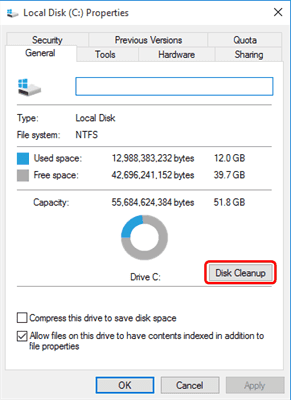
You will find a folder named Windows.old in C drive after upgrading. If you confirm that you will use Windows 10 for ever, then delete this folder. Right click C drive and select Properties. Then click Disk Cleanup.
#2. Close Login password
Windows 10 sets up password for system security, nevertheless it prolong desktop loading time. You can change this setting to save loading time. If your PC could be accessed by others, then think twice.
Press Windows key + R at the same time to open Run box. Type netplwiz and hit Enter. Uncheck Users must enter a user name and password to use this computer box, and click Apply. It will ask you to type password in the pop-up window to confirm this operation.
#3. Close IPv6
IPv6 is the abbreviation of Internet Protocol Version 6, which hasn’t been popularized in the world. This protocol started since 2012, but its penetration is less than 30 % after 4 yeas’ development. This is not saying IPv6 is not good enough, but its development is closely linked with state policy. Anyway, to open IPv6 will lengthen the time of connecting network and close it won’t affect the use of network since we still have IPv4.
Go Start -> Control Panel -> Network and Internet -> Network Connections. Double click Ethernet0, click Properties, and then uncheck Internet Protocol Version 6 (TCP/IPv6) box.
#4. Close unnecessary Visual Effects
Visual Effects in Windows 10 could improve user experience, but it is not necessary on PC with old drives. Close it to reduce loading time.
Double click This PC on the desktop, and click System properties -> Advanced system settings -> Settings. Uncheck Fade out menu items after clicking box.
#5. Disable Virtual Memory
To disable Virtual Memory in Windows 10 could reduce reading and writing times to hard disk. Besides, local memory has faster data transfer speed than virtual memory. If your hard drive holds enough capacity, just disable this setting.
Follow the steps in Tip #4 to Settings. Click Advanced next to Visual Effects, and click Change. Then uncheck Automatically manage paging file size for all drives box and pitch on No paging file and click Set.
With these 5 tips, you can speed up your Windows 10 on PC with old drives and running Windows 10 at better experience. Many users also deal with Windows 10 slow speed issue using another solution, upgrade HDD with SSD or new hard drive. But you need to choose the right software while clone boot drive to SSD.